To identify Shadowrocket, check the specific product page—not search rankings or name similarity. Whether you’re buying it for the first time, reinstalling on a new device, or checking an installed app, this guide explains how to verify its three identifying details, what to check before purchase, and how to distinguish app identity from connection setup issues.
Three ways to verify the app: developer, icon, and app ID
The essentials: the product is named Shadowrocket, the developer is Shadow Launch Technology Limited, and the app ID is 932747118. Check all three on the same App Store product page. Search result order, the words “Little Rocket” in a title, or protocol names in an app description are no substitute for verifying the product itself.
The developer confirms who the app belongs to, the official icon helps you spot it at a glance, and the app ID confirms which product a link points to. Each serves a different purpose: if the icon looks similar, check the developer; if the name matches, check the ID. Don’t make a purchase based on appearance alone.
If any details don’t match, stop before buying
Compare the product page with the three details on our official app verification page. If anything is unclear, confirm the page is for the right app before paying or installing.
Verify the app on the App Store, step by step
These steps focus on the App Store on iPhone and iPad. Store labels may vary with your device language and system interface; always verify the product page itself, not search suggestions or result summaries. If you’ve purchased the app before, check that the app ID is the same.
-
Open the App Store
Open App Store → Search and enter
Shadowrocket. You can also visit our official app verification and purchase guide first, then use the App Store link there after checking the details. -
Open the product page
Open the full product page for a candidate app. Check the developer below the name and the provider information on the page; confirm the full name
Shadow Launch Technology Limited. Don’t rely on a truncated line in the search results. -
Compare the icon
Compare the product page icon with the official icon shown below. Look for the overall design: a rocket outlined in blue and purple on a white background. Use the icon as a visual clue, then verify the developer and app ID too.
-
Check the link
On the product page, use the share menu to copy the link. Check that its hostname is
apps.apple.comand that the product path containsid932747118. Don’t rely on the language or region part of the URL instead of checking the numeric ID. -
Confirm before buying
Once all three details match, review the price, compatibility, and purchase prompts, then buy and install through the App Store. Refer to the App Store listing for system requirements, compatibility, and purchase availability.
When checking a link, read its actual hostname and path—not a URL displayed as text in a webpage title. If the link first takes you through an unverified intermediary page, don’t proceed. Return to our official app verification page and open the product page from there.
Using the official icon: a visual clue, not proof on its own
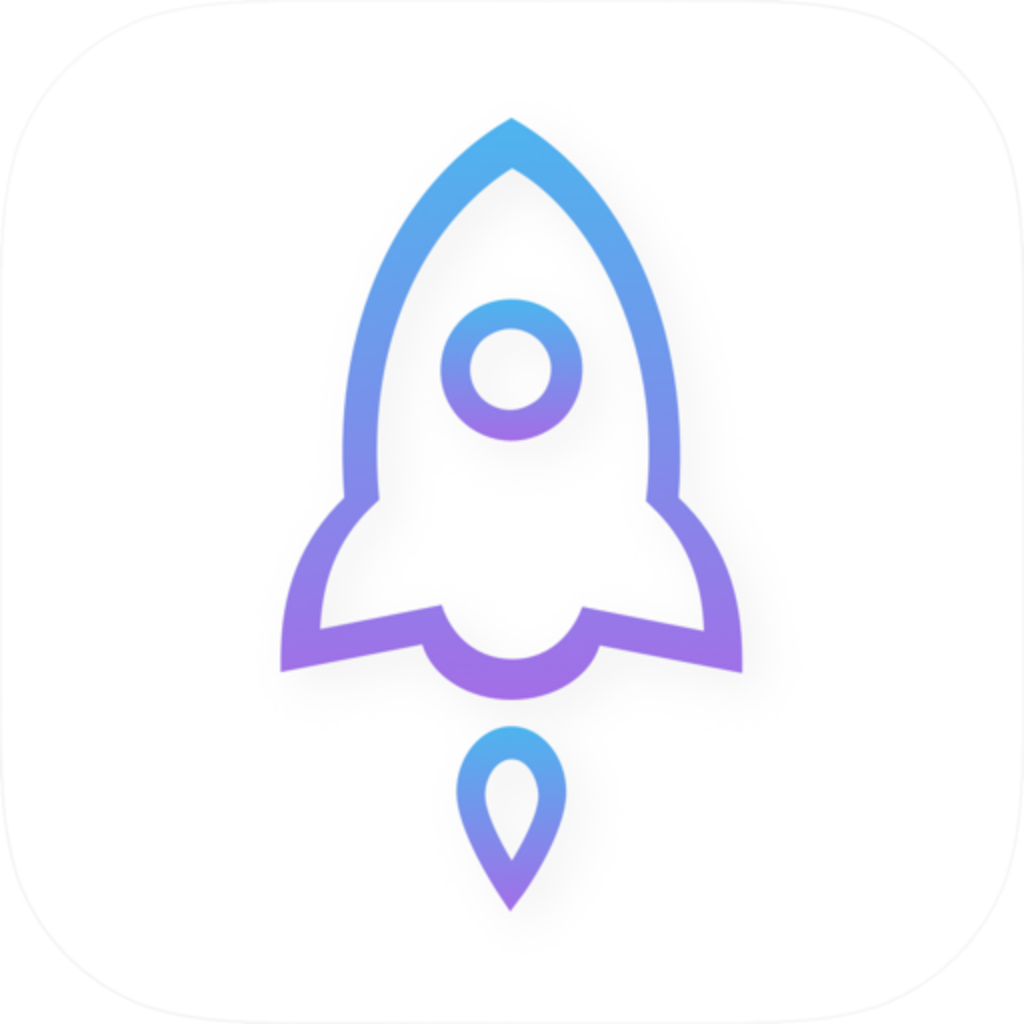
The icon is a quick first check, but it shouldn’t be the sole reason to buy. A similar rocket shape, a matching background color, or the nickname “Little Rocket” in a title doesn’t confirm that it’s the same app. Open the full product details rather than buying based on a thumbnail in search results.
- Check the name: Confirm the full name
Shadowrocket. Don’t mistake keywords in the description for the product name. - Check the developer: Read the full name
Shadow Launch Technology Limited. A single matching word isn’t enough to confirm it’s the same developer. - Check the ID: The correct app ID is
932747118. It identifies the app; it isn’t a price, version number, or purchase reference. - Check the page: Verify the product page you’re about to buy from. An icon on one page cannot confirm a purchase made on another.
Ratings, review counts, and search positions can change, and none can replace these three checks. Even if a result ranks first, open its full details. If the page says you’ve already purchased the app, make sure that purchase record belongs to the app you’re verifying.
Before you buy: distinguish the app purchase from your service
Shadowrocket is a closed-source commercial app sold as a one-time purchase through the App Store. Buying the app does not buy a connectivity plan. The purchase covers use of the app; server details or a subscription for connecting come from services you already have. Keep these separate to avoid confusing the App Store purchase with your connection experience.
| Check | How to verify | What this confirms |
|---|---|---|
| App identity | Full developer name, official icon, and ID 932747118 | Confirms you’re about to buy the intended app |
| Price and payment | Review the current App Store product page and purchase confirmation | The currency and amount shown at checkout |
| Device compatibility | Check the compatibility section on the product page | Refer to the App Store listing for system requirements and purchase availability |
| Connection details | Make sure you already have usable server details or a subscription | The app purchase and service term are managed separately |
Shadowrocket is primarily used on iPhone and iPad. Check the same App Store product page for compatibility information for Mac, Apple TV, and Apple Vision. Don’t assume that because it installs on one device, it meets the requirements on every device. The one-time app purchase also doesn’t extend the term of an existing service.
After switching devices, use the Apple Account that made the purchase to check your App Store purchase history, then find the Shadowrocket product page. If you don’t see the expected record, check the account and app ID before paying again just because a result with the same name appears in search.
After installing: app settings don’t verify authenticity
Seeing interface labels such as Home, Config, or Settings can help you find your way around, but it doesn’t prove the app’s identity. First verify the product on the App Store, then configure your existing server or subscription. Connection issues usually call for checking your settings, network, and routing; a webpage failing to load doesn’t by itself mean you installed the wrong app.
For example, you can add an existing subscription from Home by tapping “+” in the top-right corner → Type → Subscribe, entering your subscription URL, and saving it. Subscription URLs contain sensitive access credentials; hide the full URL and any tokens when troubleshooting. Then check that the expected entry appears in Home and review your Global Routing setting.
Config
RecommendedRoutes traffic according to the currently selected configuration; the actual path depends on its rules and policies. For example, DOMAIN-SUFFIX can match a domain suffix, while FINAL handles traffic that didn’t match an earlier rule. Config doesn’t simply “automatically pick the fastest route for all traffic.”
Best for: everyday rule-based routing when you already have a suitable configuration.
Proxy
Routes traffic handled by the app through a proxy. Temporarily comparing its results with Config can help determine whether a problem is related to rules. Switching modes won’t fix an incorrect server address, port, or authentication details.
Best for: temporarily troubleshooting rule-based routing when you already have a working server.
Direct
Routes traffic handled by the app directly. If a destination requires an existing service, failing to reach it while Direct is selected doesn’t indicate a problem with the app’s identity.
Best for: comparing direct access over your local network to narrow down where the issue lies.
These comparisons are about routing settings, not how to verify the app. If you use Scene under Global Routing, check its settings too. Differences between routing modes don’t indicate different app identities. Before enabling automatic connections, review Settings → On Demand and make sure the network conditions and connection behavior suit your needs.
FAQs: lookalike listings, reinstalling, and connection problems
Is the first search result the official app?
Search ranking doesn’t prove authenticity. Open the full product page and check the developer, Shadow Launch Technology Limited, the official icon, and ID 932747118. If anything doesn’t match, return to our official app verification page and open the listing from there. Don’t buy from the page you’re unsure about.
The name matches, but the developer is different. What should I do?
Stop before paying. The same name doesn’t mean it’s the same app; verify the full developer name and app ID together. Make sure you’re looking at the app’s developer information, not a name mentioned in its description.
I bought it before. Why am I seeing a price again?
Check the Apple Account currently used for the App Store, your purchase history, and the product ID to confirm you’re viewing the same app. If they still don’t match, use the purchase support option provided by the App Store to check your record, and hold off on paying again.
There are no servers after installation. Did I install the wrong app?
An empty Home list doesn’t tell you whether an app is genuine. Verify the app on the App Store, then add your own subscription or server details. Buying the app doesn’t automatically add your service information.
All three checks match, but webpages won’t load. What should I do?
First check that the server or subscription selected in Home is active. Then review the current Global Routing mode, the configuration selected in Config, and your device’s network. Note the specific error and follow the connection troubleshooting steps on our Troubleshooting page instead of buying the app again.
One final check: verify app identity on the product page, purchase status in your purchase history, and connection status using your existing service and configuration. Treating these as separate issues helps narrow down the relevant page or setting. For more help, read Troubleshooting or follow Getting Started to complete your initial setup.